

Exporting contact lists sounds simple until you're staring at a corrupted CSV, a list that includes every contact your company has ever touched, or worse, a file that violates GDPR because someone clicked "export all" without thinking. B2B sales and marketing teams waste hours every week on messy exports, manual cleanup, and re-importing corrected files into their outreach tools. The stakes are real: poor export practices lead to bounced emails, compliance risks, and campaigns that miss their intended audience entirely. This guide walks you through the exact steps to export clean, segmented, compliant contact lists from HubSpot, Salesforce, and Google Contacts, so you can spend more time selling and less time fixing broken files.
- How to export contact lists from major CRMs: HubSpot, Salesforce, and Google Contacts
- Handling large lists and special cases: Batch exports, permissions, and privacy
- Verifying and optimizing your export: Next steps for outreach-ready lists
- Why the real ROI of exporting contact lists comes from what you do next
- Take control of your outreach with targeted business email lists
- Frequently asked questions
Key Takeaways
| Point | Details |
|---|---|
| Prep before export | Double-check permissions, segments, and compliance before exporting any contact list. |
| Choose right export tool | Select the best CRM export method and file format for your outreach workflow. |
| Handle large lists carefully | Use batching and admin tools for high-contact-count exports and watch for platform-specific limits. |
| Verify and enrich | Clean and enrich your exported data to ensure high delivery and engagement rates in campaigns. |
Pre-export checklist: Setting up for a smooth contact list export
Now that we understand the problems with disorganized exports, let's make sure you have everything in place before exporting contacts. A little preparation here saves a lot of cleanup later.
1. Confirm your permissions
Before you do anything, verify that you have the right access level in your CRM. In HubSpot, you need the "Export" permission enabled in your user settings. In Salesforce, only users with admin or specific data export permissions can pull full contact records. If you start the export process without the right access, you'll either get an incomplete file or an error message that sends you back to IT.
2. Segment your list before you export
This step is where most teams cut corners, and it costs them later. Rather than exporting your entire contact database and filtering afterward, do the filtering inside your CRM first. Create a saved list or view based on:
- Industry or company size
- Geographic location (city, state, postal code)
- Lead status or lifecycle stage
- Last activity date
- Opt-in or consent status
Exporting a pre-segmented list means your file is immediately usable, with no extra manipulation required. It also reduces the risk of sending outreach to contacts who should be excluded.
3. Understand your output format
CSV is the standard for most outreach tools and email marketing platforms. It's compatible with virtually every CRM, email service provider, and lead management system. Excel files work too, but they can cause encoding issues when they include special characters or phone numbers formatted as integers. Stick to CSV unless your downstream tool specifically requires Excel.
Important: Data privacy compliance (GDPR and CAN-SPAM) is essential for outreach. Always verify that your contact list includes only individuals who have consented to receive communications, or where a legitimate interest basis applies. Exporting and using data without a legal basis is a compliance risk that can result in significant fines.
4. Back up your data
This one is easy to skip but matters more than you'd think. Before any large export or data manipulation, run a backup. Most CRMs have a built-in data export or snapshot feature. In HubSpot, you can export all properties for your full database. In Salesforce, the Data Export Service creates a full backup. Having a clean backup protects you if something goes wrong during the export or if you accidentally overwrite records later.
Pro Tip: Review data enrichment tips before you export. Knowing what fields you plan to enrich after export helps you decide which properties to include in your initial file, saving you a re-export later.
5. Do a test export first
Run a small test export of 50 to 100 contacts before pulling thousands of records. Check the formatting, make sure field names map correctly, and confirm that all the columns you need are present. This quick check prevents wasted time when you scale up to a full export.
How to export contact lists from major CRMs: HubSpot, Salesforce, and Google Contacts
Preparation is key. Now, let's dive into exporting from the most popular CRM platforms used by B2B teams.
HubSpot
HubSpot allows exporting contact records in CSV or Excel format, with three property options: properties in the current view, all properties, or all properties including associations (like company or deal data). Here's how to do it:
1. Go to Contacts in the top navigation.
2. Filter or select a saved view of the contacts you want to export.
3. Click the Actions dropdown and select Export view.
4. Choose your format: CSV or Excel.
5. Select which properties to include.
6. Click Export. HubSpot emails you a download link within minutes.
The "all properties with associations" option is especially useful when you need to match contacts to their parent company records. It adds columns like company name, deal stage, and revenue, which can help your sales team prioritize outreach.
Salesforce
Salesforce provides three main export methods: the Data Export Service (scheduled, automated), Reports (filtered, on-demand), and Data Loader (bulk exports).
1. Reports method: Build a Contact report with your desired filters. Click Export from the report view. Choose CSV format.
2. Data Export Service: Go to Setup > Data Export. Schedule weekly or monthly exports of all your data.
3. Data Loader: Download the desktop application. Use it for exports exceeding 50,000 records.
Pro Tip: For advanced contact export strategies, use Data Loader with a SOQL query to extract only the fields and records you actually need. This keeps your file manageable and your process faster.
Google Contacts
Google Contacts supports export as Google CSV, Outlook CSV, or vCard. For B2B outreach, Google CSV is your best bet for importing into email tools.
1. Open Google Contacts.
2. Select contacts manually or by label.
3. Click the More actions menu (three dots) and choose Export.
4. Pick your format: Google CSV, Outlook CSV, or vCard.
5. Download and save the file.
Platform comparison
| Feature | HubSpot | Salesforce | Google Contacts |
|---|---|---|---|
| Export formats | CSV, Excel | CSV | CSV, vCard |
| Bulk export support | Yes (view-based) | Yes (Data Loader) | Limited |
| Filter before export | Yes (saved views) | Yes (reports, SOQL) | Yes (labels) |
| Association data | Yes | Yes | No |
| Permissions required | Export permission | Admin or profile | Account owner |
| Automation options | Manual | Scheduled (weekly/monthly) | Manual |
Each platform has distinct strengths. HubSpot is the most user-friendly for day-to-day exports. Salesforce is the most powerful for enterprise-scale pulls. Google Contacts works well for smaller teams without a dedicated CRM.
Handling large lists and special cases: Batch exports, permissions, and privacy
Even when you know the steps, large lists and compliance requirements add another layer of complexity that you need to plan for.
Exporting 10,000+ contacts
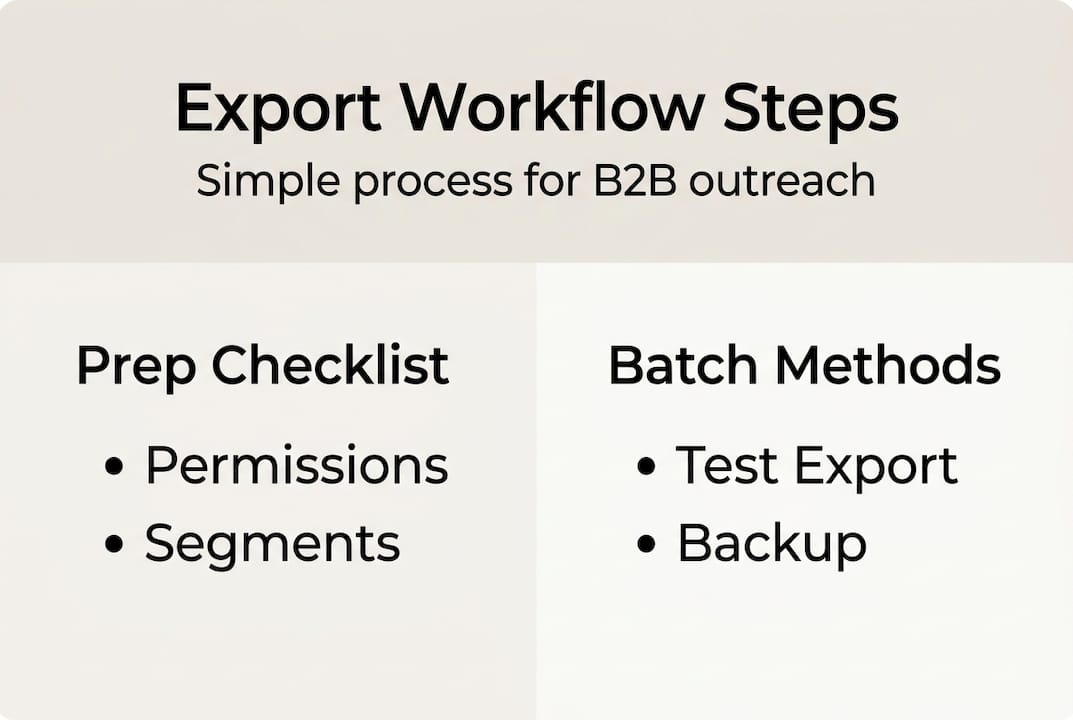
Large lists require batching to avoid timeouts and file errors. In HubSpot, exports are limited by the view you've created. If you need to export more than your view limit allows, break your list into segments (by date range, lifecycle stage, or geography) and run multiple exports. In Salesforce, Data Loader is the recommended tool for large-scale bulk exports, handling millions of records when configured correctly.

Platform export limits at a glance
| Platform | Standard limit | Bulk method | Notes |
|---|---|---|---|
| HubSpot | View-based (no hard cap) | Multiple view exports | Email delivery of download link |
| Salesforce | 250,000 rows via Reports | Data Loader (unlimited) | SOQL queries improve speed |
| Google Contacts | No stated limit | Manual only | Practical limit is smaller databases |
For managing bulk contact data, the best approach is to build a repeatable batching process. Document your segment logic and export schedule so any team member can replicate it without starting from scratch.
Permissions and who needs them
Admin permissions are not just a technical requirement. They're a safeguard. If every user can export the full contact database, you create serious data security risks. Limit export permissions to:
- CRM admins
- Marketing operations managers
- Designated sales ops roles
In HubSpot, you can set this at the individual user or team level. In Salesforce, permissions are managed through profiles and permission sets. Review these settings quarterly, especially when team members change roles or leave the company.
Privacy compliance for large exports
Here's the practical reality: the bigger your export, the higher the compliance risk. Large lists almost always include contacts with mixed consent statuses. Before using any exported list for outreach, run these checks:
- Filter by opt-in status. Only include contacts who have explicitly opted in, or where you have a documented legitimate interest basis.
- Suppress unsubscribes. Cross-reference your suppression list before uploading to any email tool.
- Check regional rules. GDPR applies to EU contacts. CAN-SPAM applies to US contacts. CASL applies to Canadian contacts. Rules differ, and penalties for violations are steep.
Remember: Even a technically perfect export file creates legal liability if the underlying consent data is wrong.
Pro Tip: Schedule a monthly review of your suppression lists and consent records. This takes 30 minutes but prevents the kind of compliance incident that takes months to resolve.
Verifying and optimizing your export: Next steps for outreach-ready lists
With your contacts exported, let's ensure your list is outreach-ready and easy to work with.
Step-by-step post-export verification
1. Open the file in a spreadsheet tool. Google Sheets or Excel both work. Check that all columns are present and properly labeled.
2. Remove duplicate rows. Use the "Remove duplicates" function in Excel or Google Sheets. Duplicates waste outreach budget and annoy prospects.
3. Check email formatting. Look for missing @ symbols, spaces inside email addresses, or malformed domains. A quick filter on the email column catches most errors.
4. Handle empty rows. Delete rows with no email address if email is your primary outreach channel. Flag rows with missing phone numbers if your team plans to call.
5. Standardize formatting. Confirm that phone numbers, job titles, and company names are formatted consistently. Inconsistent formatting causes problems when you upload to outreach tools.
Data enrichment: Filling the gaps
Enrich your contact list post-export for emails and phone numbers, and use CRM export associations to organize contacts for more targeted outreach. Common enrichment approaches include:
- LinkedIn matching: Cross-reference names and companies to verify current job titles and roles.
- Email verification tools: Run your list through a tool like ZeroBounce or NeverBounce to catch invalid addresses before you send.
- Phone research: For contacts missing direct phone numbers, use a business directory or database to fill gaps.
- Company data appending: Add revenue range, employee count, or industry codes if your CRM didn't include them.
The goal of enrichment is simple: every record in your final list should be accurate, complete, and actionable. Think of it as effective list cleaning that directly improves your deliverability rates and campaign response rates.
Re-uploading your improved list
Once you've cleaned and enriched your file, re-upload it to your CRM or outreach tool. In HubSpot, use the import function and map columns to existing contact properties. In Salesforce, use Data Loader or a manual import for smaller batches. Most email marketing platforms like Mailchimp or ActiveCampaign have straightforward CSV import wizards.
Pro Tip: Before importing an enriched list into your CRM, create a test contact and import a 10-row sample. This confirms your field mapping is correct and prevents overwriting existing data with incorrectly formatted values.
What to check before launching outreach
- ✅ No duplicate email addresses
- ✅ All emails validated or verified
- ✅ Suppression list applied
- ✅ Consent status confirmed
- ✅ Segmentation aligns with your campaign goal
- ✅ Personalization fields (first name, company) are populated
Getting all of these right before you hit send is what separates campaigns with a 30%+ open rate from ones that land in spam folders.
Why the real ROI of exporting contact lists comes from what you do next
Now that we've covered the full workflow, let's zoom out to what truly drives results with exported contact data.
Here's the uncomfortable truth: most B2B teams treat the export itself as the finish line. They pull the list, maybe delete a few obvious duplicates, and start sending. That approach leaves serious results on the table. We've seen it repeatedly. The teams that consistently get higher reply rates and lower bounce rates are the ones that treat the export as step one, not the final step.
Think about it this way. A perfectly executed export gives you raw material. Enrichment, cleanup, and segmentation are what turn that raw material into building high-quality lists that actually convert. An enriched, verified list of 5,000 contacts will outperform a raw, unvalidated list of 20,000 every single time, because deliverability goes up, personalization becomes possible, and you're reaching people who actually match your target profile.
The contrarian advice here is this: allocate as much time to post-export work as to the export itself. If your export takes two hours, plan two more hours for verification and enrichment. That's where your campaign ROI lives.
Take control of your outreach with targeted business email lists
Ready to put these strategies to work? If you want to skip the manual export process entirely and get pre-segmented, compliant contact lists built for B2B outreach, SphereScout.io is worth exploring.
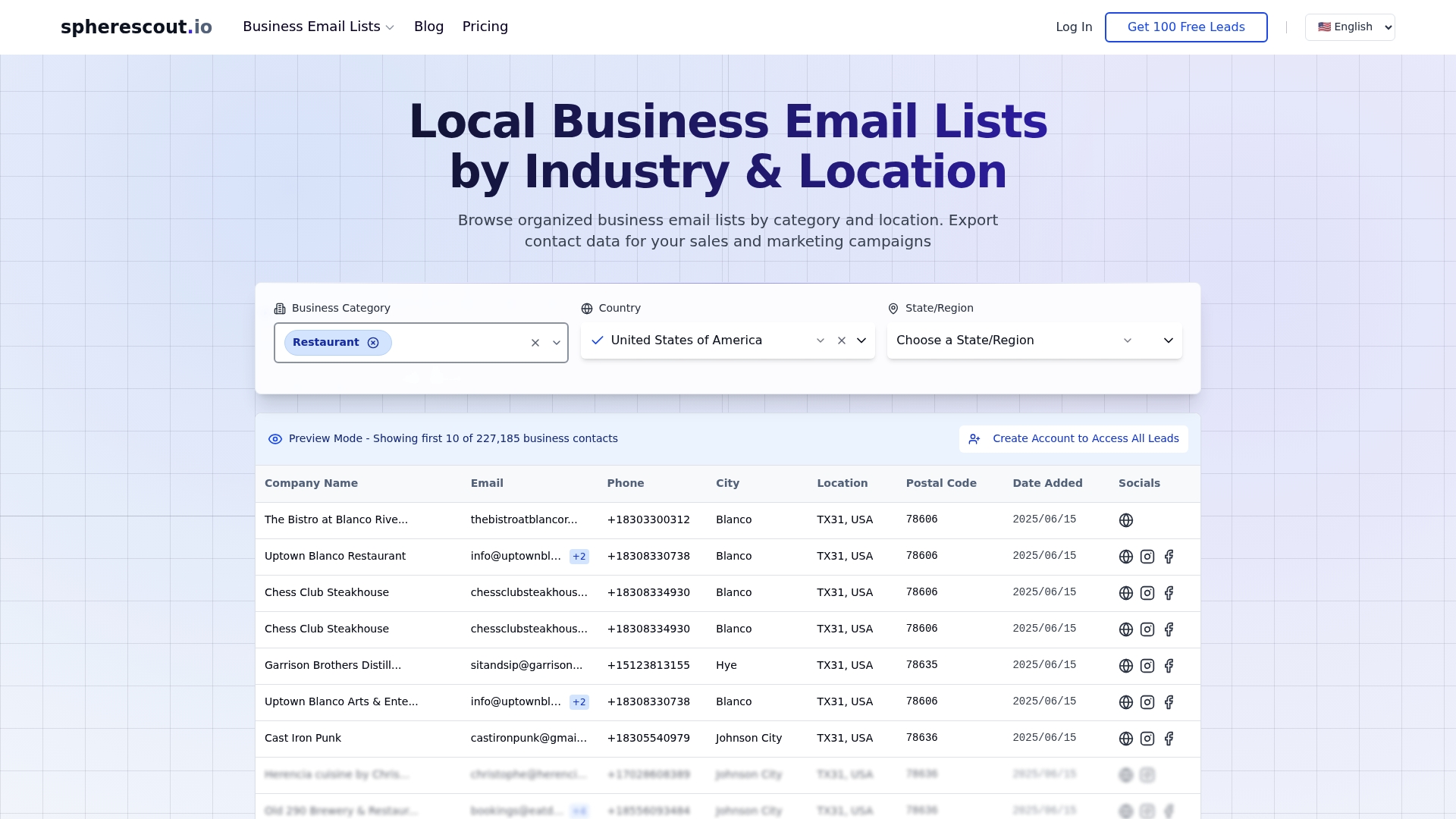
We've built a database of over 30 million business contacts, filterable by industry, city, postal code, and company type. You can download USA business email lists formatted as CSV files that are ready to plug directly into your CRM or email platform. No messy exports, no manual cleanup, no permission conflicts. If you're scaling your outreach or testing a new market, our lead generation solutions let you move from idea to campaign in hours, not days.
Frequently asked questions
What formats can I export my CRM contacts to?
Most CRMs support CSV and Excel; Google Contacts also supports vCard format, which is useful for importing contacts into mobile devices or mail clients.
How do I export a large list of contacts from Salesforce?
Use the Data Export Service for scheduled large exports or Data Loader for custom, bulk exports that exceed the standard report row limit.
Do I need special permissions to export contact lists?
Yes, exporting typically requires admin-level or specifically granted export permissions in both HubSpot and Salesforce, which you should confirm with your CRM administrator before starting.
How do I ensure exported lists are compliant with GDPR or CAN-SPAM?
Only include contacts who have consented to outreach or where you have a documented legal basis, and always apply your suppression list before uploading to any email or outreach platform.
Recommended
- Local Business Email Lists by Industry & Location | SphereScout
- Local Business Email Lists by Industry & Location | SphereScout
- Local Business Email Lists by Industry & Location | SphereScout
- Local Business Email Lists by Industry & Location | SphereScout
- business directory CSV
- prospecting list Excel
- create a prospecting list